 Help Center
TimescapeLive Mobile App – How to Set Up Employees
What is Timescape Live?
TimeScape Live tracks the labor and material costs associated with each piece of equipment. This allows organizations to calculate the true cost of ownership for equipment and make informed decisions about when continued repairs are no longer financially justified.
TimeScape Live also creates detailed employee time sheets in real time. Employees clock into the app and scan the equipment, jobs, tasks, and materials used throughout the day.
Watch this video, to learn how to set up the Timescape Live Mobile Application for your employees.
1. Download TimeScape LIVE app.

2. Navigate to the Shop & Mechanic Tracking Section of your SmartAsset portal.
3. Click on Phone Setup.

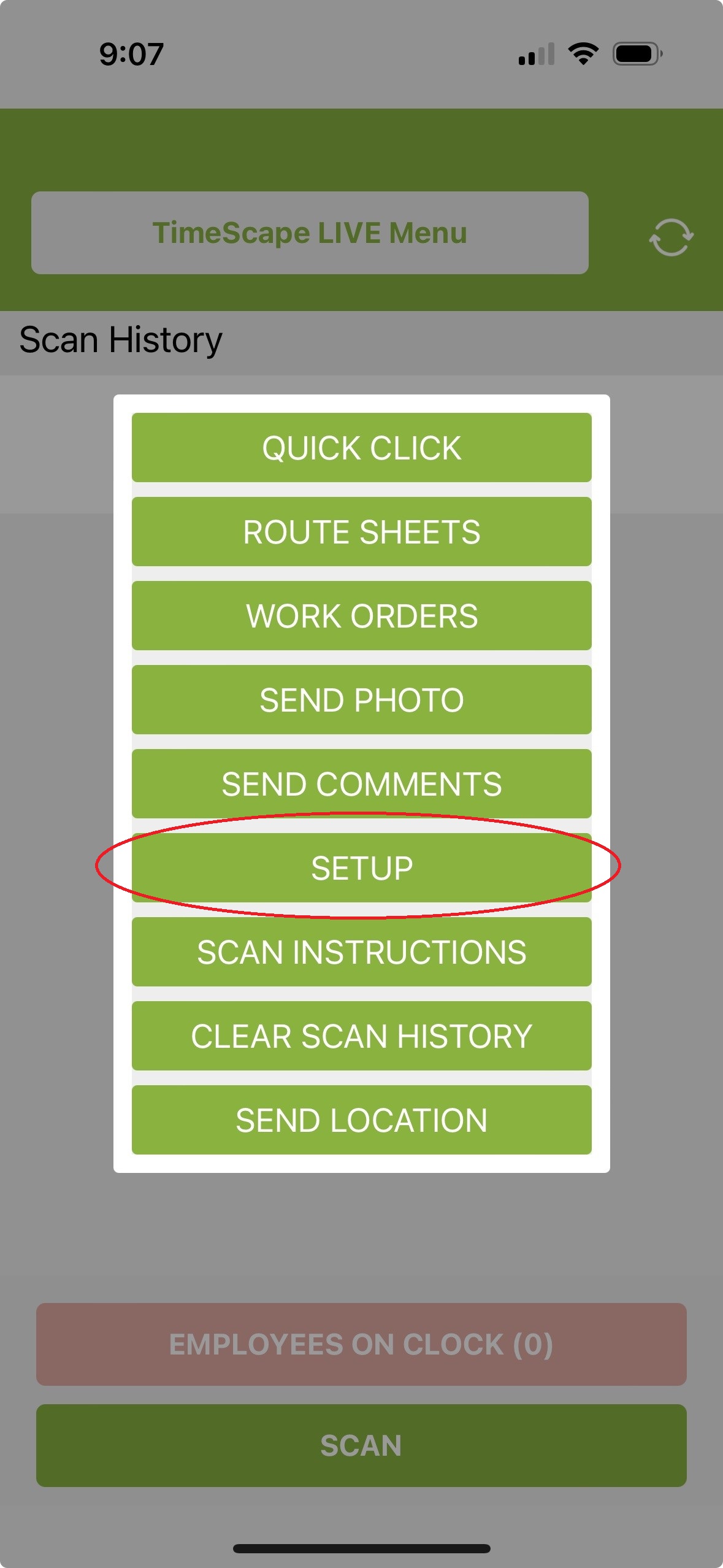
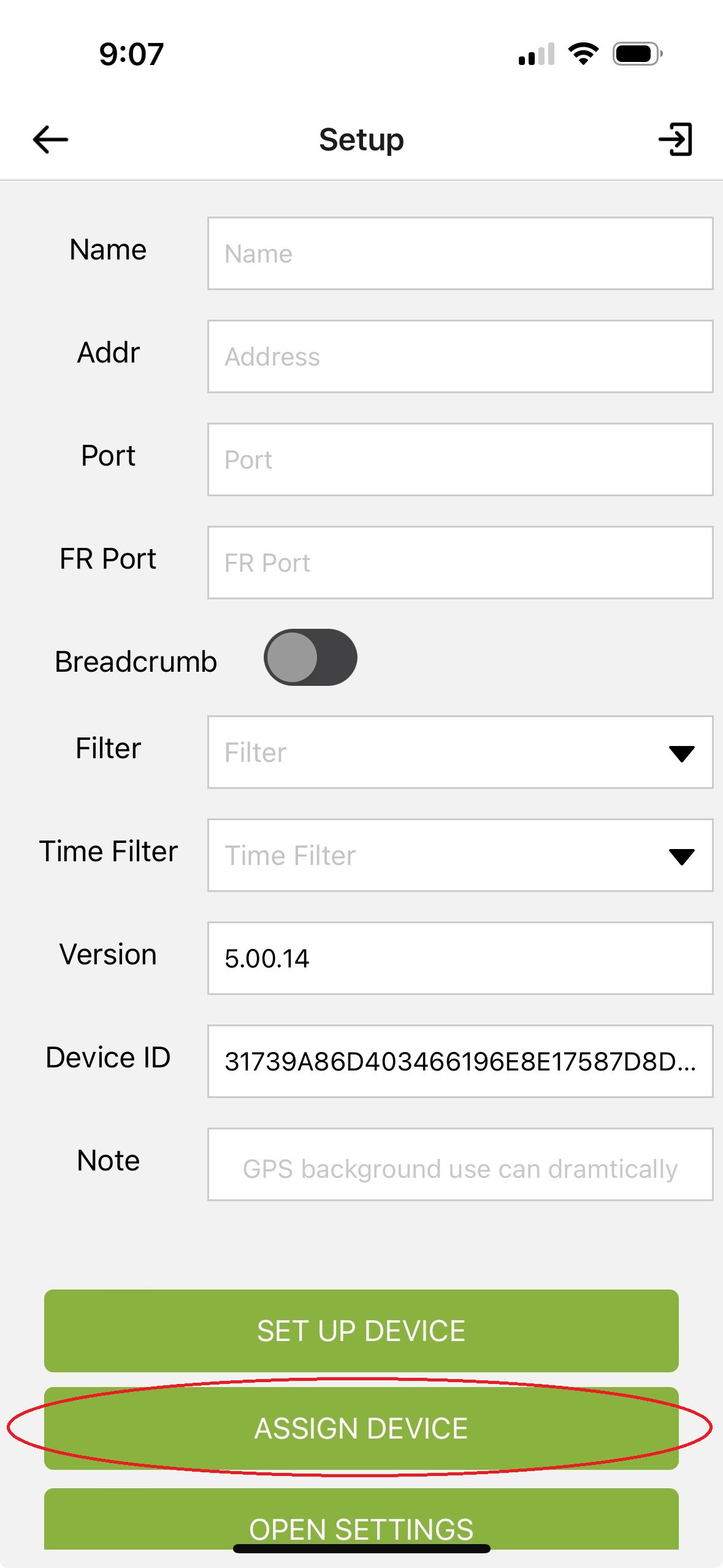
4. In the mobile app, Select TimeScape LIVE Menu → SETUP → SET UP DEVICE
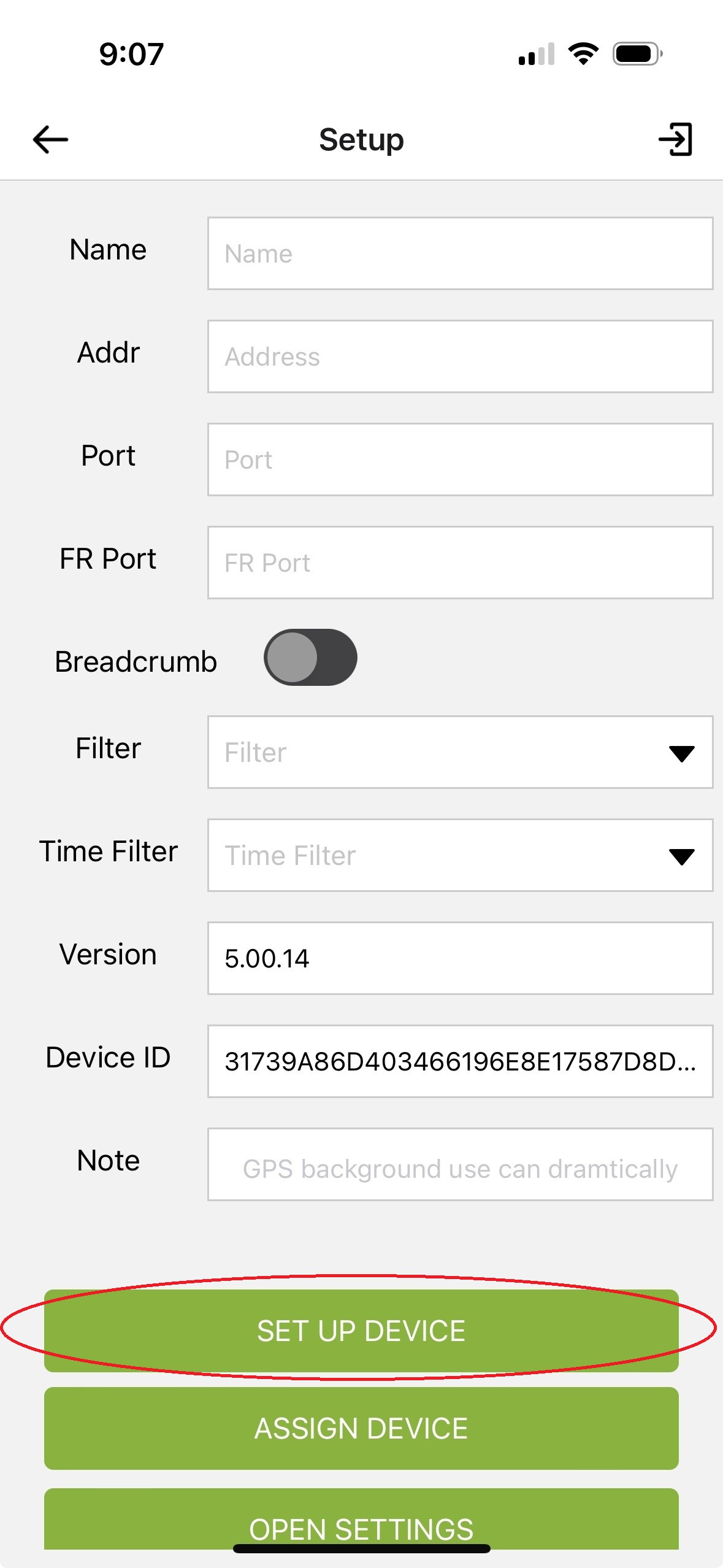
5. Scan the QR code in Step 4 of the Phone Setup instructions in the SmartAsset website with your Timescape Live Mobile App. Note: Each company will have a unique QR code in their SmartAsset portal.

6. Assign phone to employee (typically crew leader).
-
-
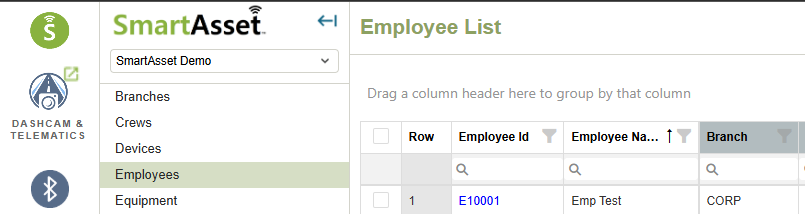
From the menu on the left side of this screen, obtain the Employee ID E_ _ _ _ _ by going to Lists → Employee.
-
From the phone application, select TimeScape LIVE Menu → SETUP → ASSIGN DEVICE and enter the E_ _ _ _ _ from above.
Test the system by Clocking In: Select TimeScape LIVE Menu → QUICK CLICK → Clock In.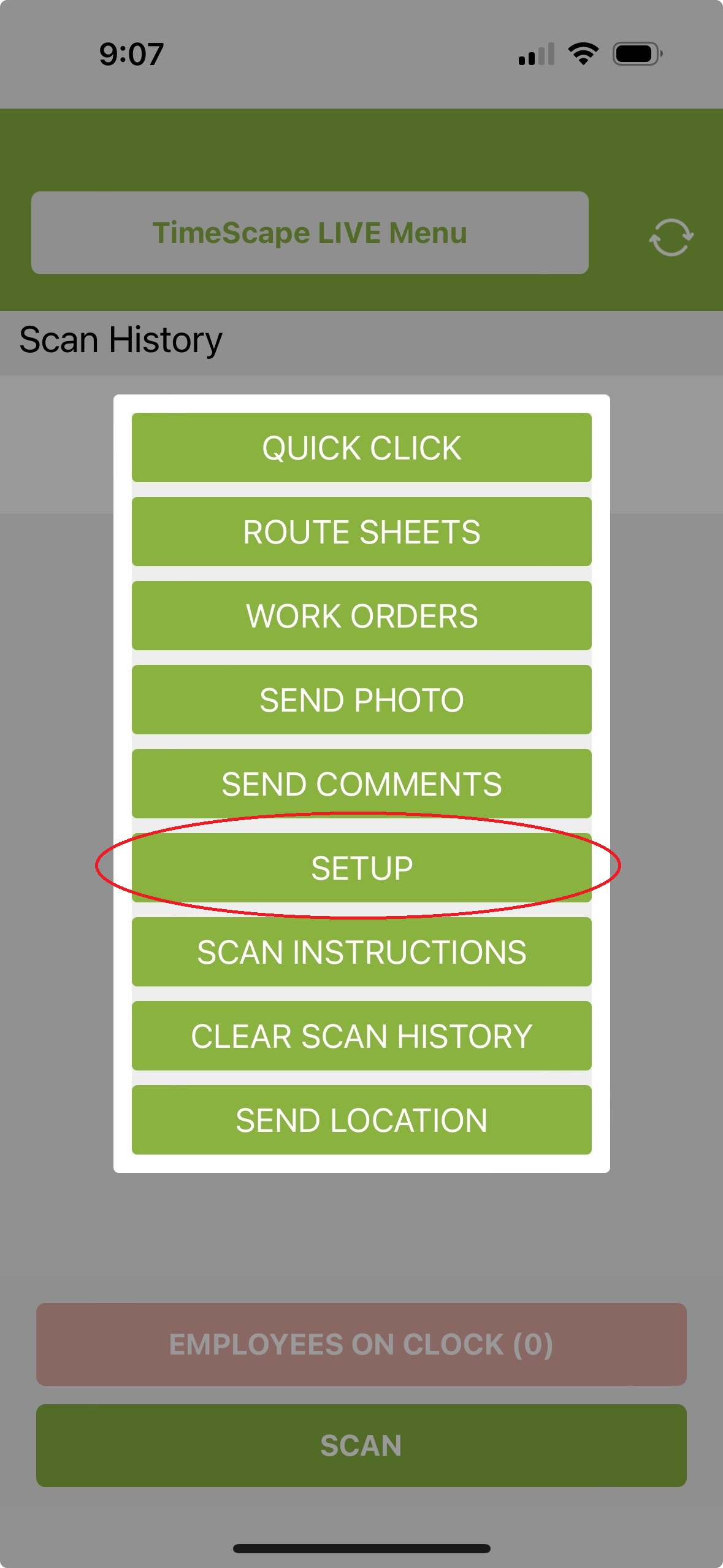
-