 Help Center
TimescapeLive Mobile App

Download the app on the Google Play Store or Apple App Store
TimeScape Live tracks the labor hours and material costs associated with each piece of equipment. This allows organizations to calculate the true cost of ownership for equipment and make informed decisions about when continued repairs are no longer financially justified.
TimeScape Live also creates detailed employee time sheets in real time. Employeess clock into the app and scan equipment, jobs, tasks and materials used throughout the day.
How to Set Up Employees
Watch this video, to learn how to set up the Timescape Live Mobile Application for your employees.
1. Download TimeScape LIVE Plus app.

2. Navigate to the Shop & Mechanic Tracking Section of your SmartAsset portal.
3. Click on Phone Setup.

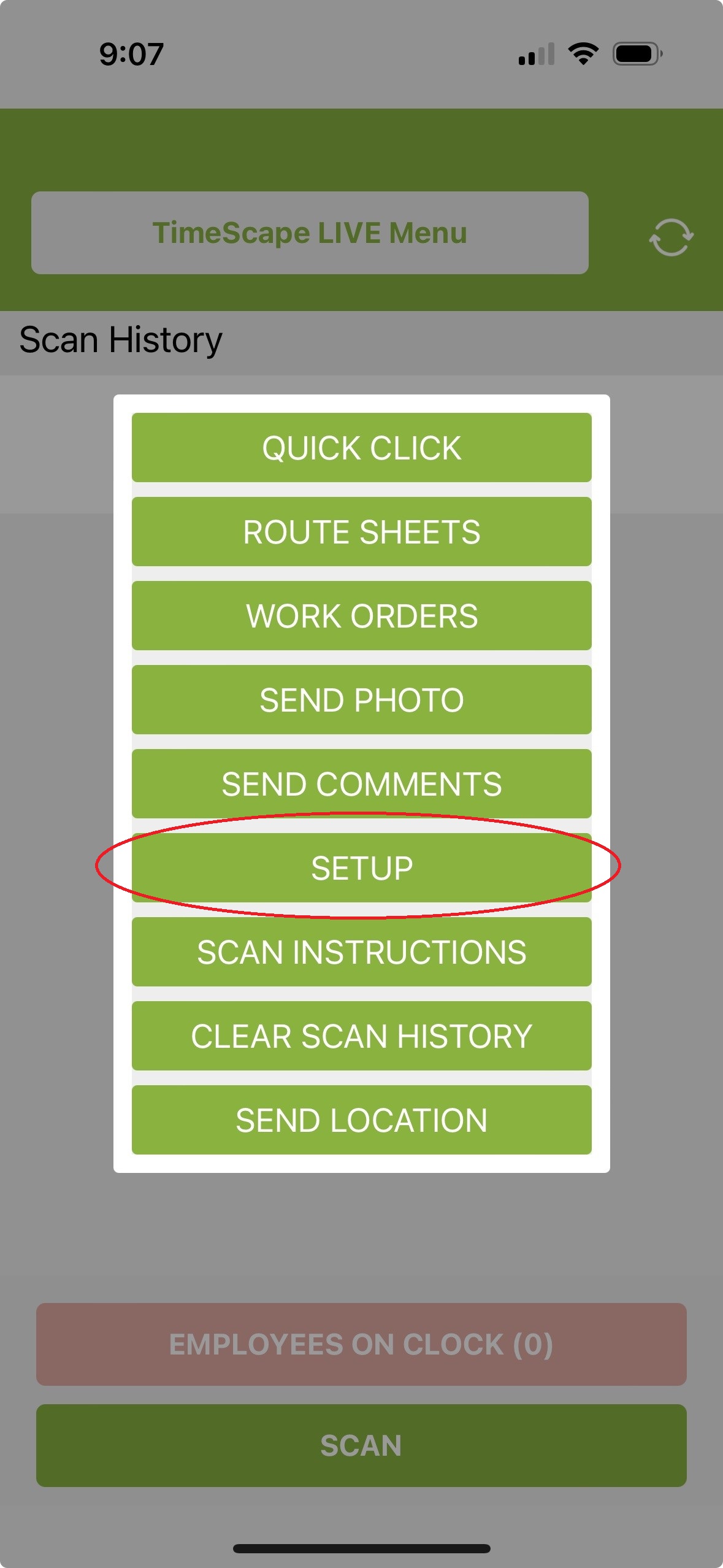
4. In the mobile app, Select TimeScape LIVE Menu → SETUP → SET UP DEVICE
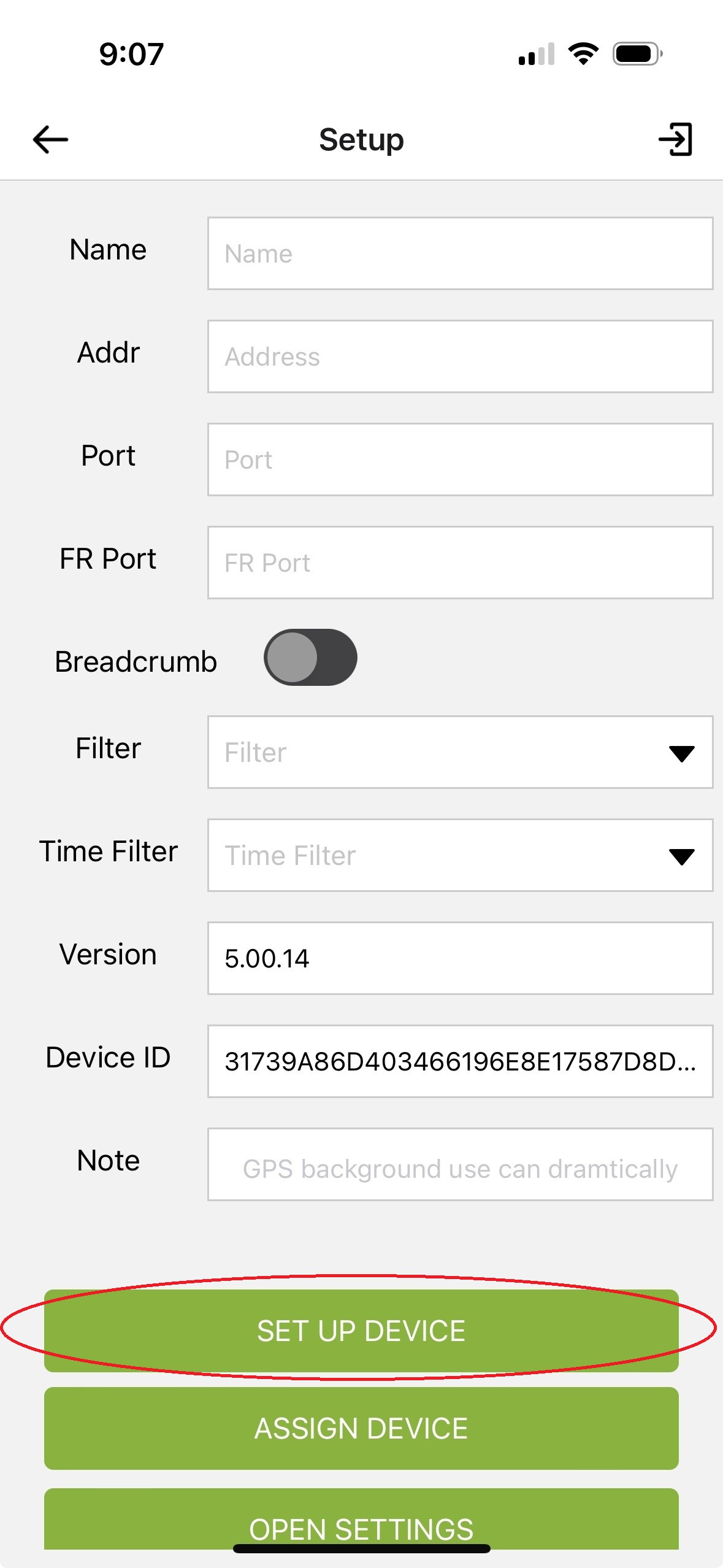
5. Scan the QR code in Step 4 of the Phone Setup instructions in the SmartAsset website with your Timescape Live Mobile App. Note: Each company will have a unique QR code.

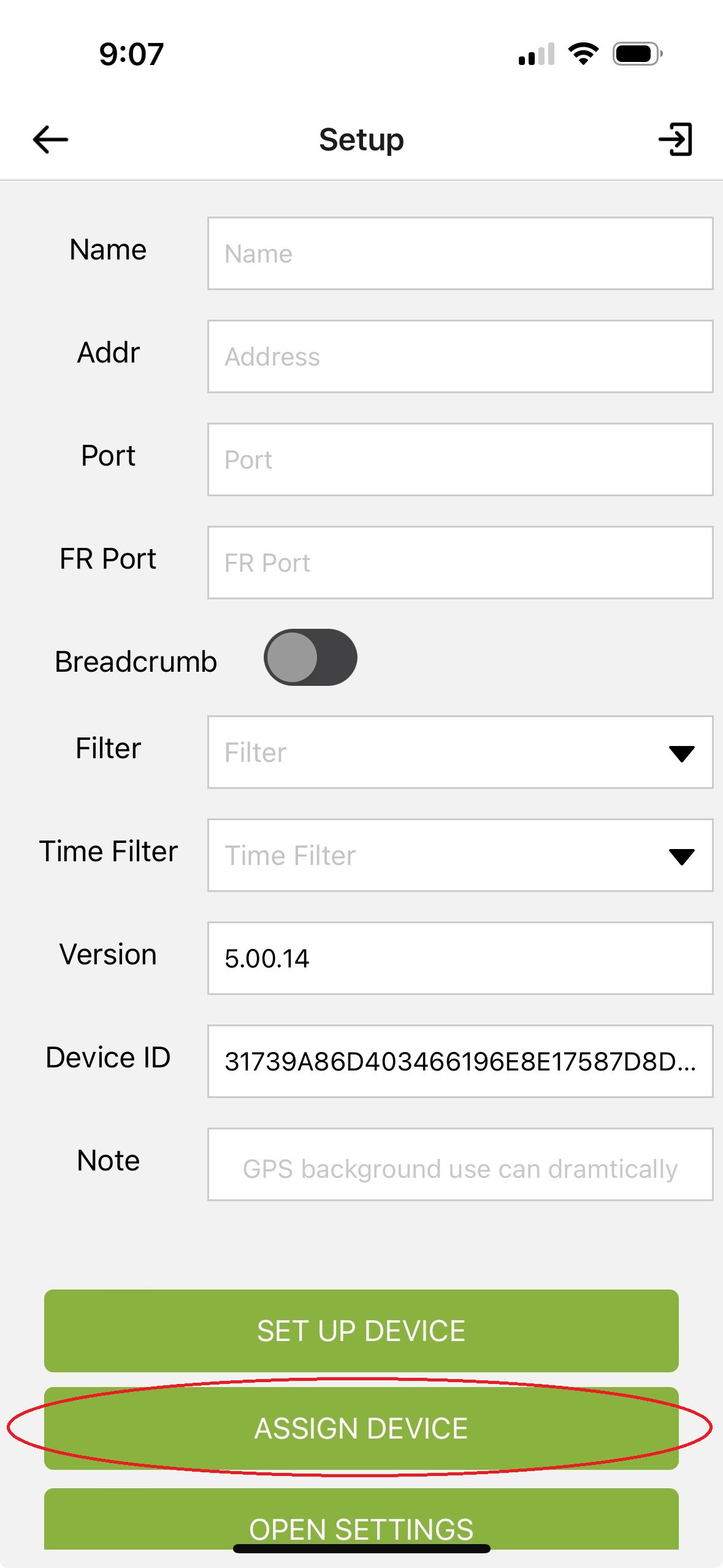
6. Assign phone to employee (typically crew leader).
-
-
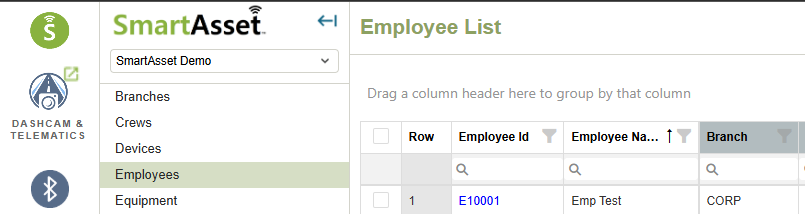
From the menu on the left side of this screen, obtain the Employee ID E_ _ _ _ _ by going to Lists → Employee.
-
From the phone application, select TimeScape LIVE Menu → SETUP → ASSIGN DEVICE and enter the E_ _ _ _ _ from above.
Test the system by Clocking In: Select TimeScape LIVE Menu → QUICK CLICK → Clock In.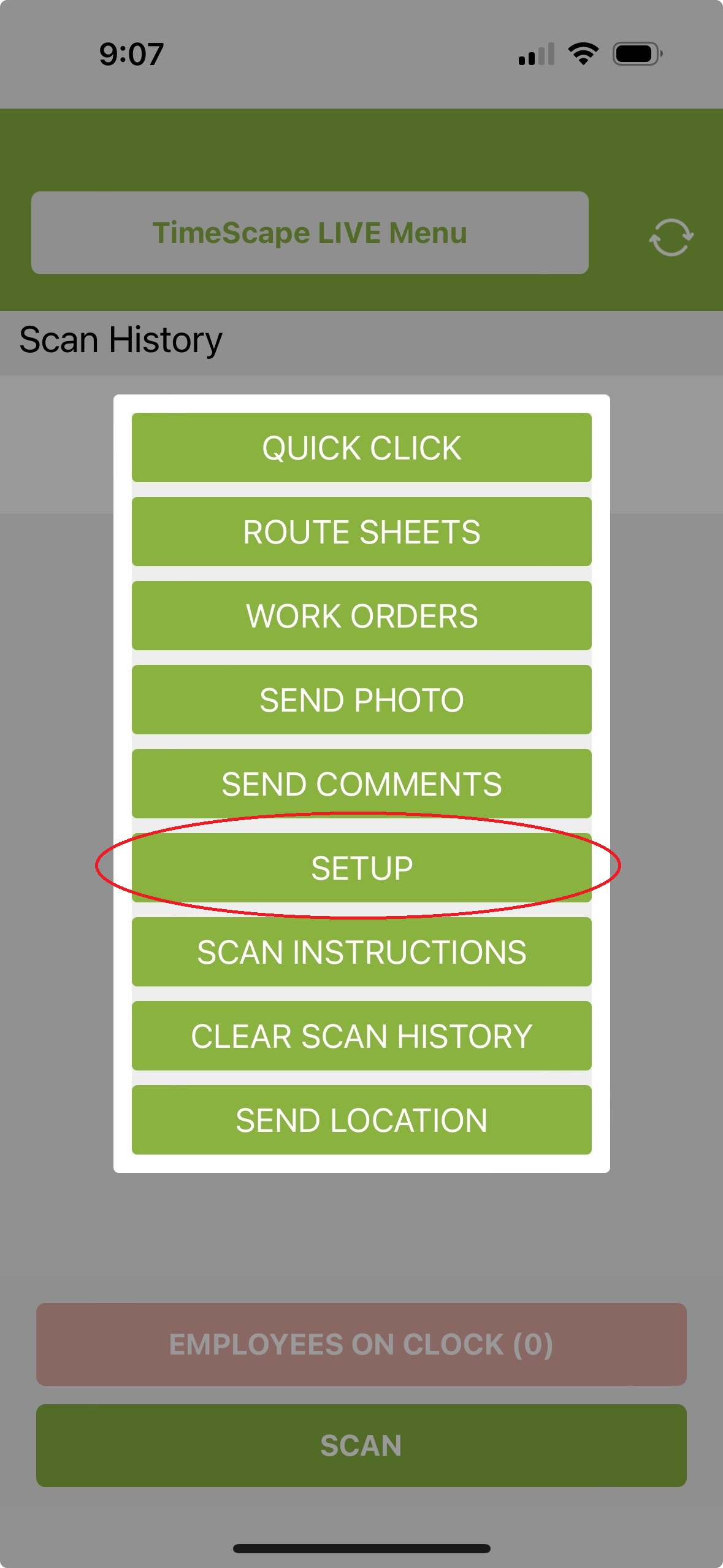
-
Daily Usage Guide for Employees
The following example shows a typical workday using the TimescapeLive mobile app.
Starting Your Workday
- Open the TimescapeLive Menu.
- Select Quick Click.
- Tap Clock In to begin your workday.
Starting Work on a Job or Equipment
- When you arrive at a job site or piece of equipment, tap the SCAN button at the bottom of the app.
- Scan the barcode associated with the job or equipment.
- When you begin a specific task, tap SCAN again and scan the barcode for the task you are performing.
Note: Task barcodes are created and distributed by your management team.
Changing Tasks
- If you switch to a different task while working on the same job or equipment, scan the barcode for the new task.
Completing a Job
- When you finish the repair, inspection, or work on the equipment, scan the job or equipment barcode again to close out the work.
Taking Lunch
Starting Lunch
- Open the TimescapeLive Menu.
- Select Quick Click.
- Tap Lunch.
Returning from Lunch
- Open the TimescapeLive Menu.
- Select Quick Click.
- Tap Lunch again to end your lunch break.
Moving to the Next Job
- Upon arriving at the next job or piece of equipment, tap SCAN.
- Scan the barcode for the new job or equipment.
- When you begin work, scan the barcode for the task you are performing.
Recording Materials Used
If you use materials during a job (such as oil filters, fuel, parts, or other supplies):
- Open the TimescapeLive Menu.
- Select Quick Click.
- Tap Quantity.
- Enter the quantity of materials used.
- After entering the quantity, scan the barcode for the material used. Note: Task barcodes are created and distributed by your management team.
Completing the Job
- When the work is finished, scan the job barcode again to close the job.
Ending Your Workday
- Open the TimescapeLive Menu.
- Select Quick Click.
- Tap Clock Out.
Typical Scan Sequence
Clock In
→ Job
→ Task
→ Task Change (if applicable)
→ Job Complete
→ Lunch Start
→ Lunch End
→ Job
→ Task
→ Quantity
→ Material
→ Job Complete
→ Clock Out
Adding Photos
To attach photos of completed work, repairs, equipment conditions, or anything relevant to a job:
- Open the TimescapeLive Menu.
- Select Quick Click.
- Tap Send Photo.
- Take or upload the photo and follow the prompts to attach it to the appropriate job or equipment record.
Adding Comments
To add comments or notes to a job, task, or piece of equipment:
- Open the TimescapeLive Menu.
- Select Quick Click.
- Tap Comments.
- Enter your notes and save them. They will automatically be associated with whatever piece of equipment or job you are currently working on.
Shop & Mechanic Tracking >Barcode Worksheet. (For directions on how to create Barcodes for your team visit this link)


